
Download CrashPlan – Secure Online & Offline Backup Tool
Overview
CrashPlan is a robust backup solution that caters to both personal and small‑business users who need reliable protection for their digital assets. Whether you prefer a cloud‑based repository or an external drive, CrashPlan lets you safeguard up to ten machines from a single account, making it ideal for households with multiple PCs, Macs, or even mixed environments. The platform’s core promise is simplicity: an intuitive wizard walks you through account creation, device enrollment, and backup selection in just a few clicks.
Once configured, CrashPlan runs silently in the background, consuming minimal CPU and RAM while continuously monitoring file changes. This “set‑and‑forget” approach eliminates the fear of losing important documents, photos, or work files due to hardware failure, accidental deletion, or ransomware attacks. While the online tier is a paid service that provides off‑site redundancy, the offline mode remains free, allowing you to back up to any attached storage device.
In real‑world testing, a 60 GB backup to an external USB‑3.0 drive completed in roughly five hours—a respectable speed for a tool that prioritizes data integrity over raw throughput. CrashPlan also includes smart file exclusion defaults per operating system, ensuring that temporary files and system caches don’t waste backup space. The only notable shortfall observed during testing was a delayed warning when the destination drive filled up; the software began the backup before alerting the user.
Overall, CrashPlan delivers a balanced mix of security, flexibility, and ease‑of‑use that makes it a compelling choice for anyone serious about protecting their data.
Key Features, Benefits, Pros & Cons
- Automatic, continuous backup of files, folders, and entire drives.
- Support for both online (cloud) and offline (external HDD/SSD) storage destinations.
- Backup up to 10 devices under a single account – perfect for families or small offices.
- Cross‑platform compatibility: Windows, macOS, Linux, and mobile (iOS/Android) apps.
- Smart file‑type exclusion lists that adapt to each operating system.
- Low CPU and memory footprint, allowing the tool to run unnoticed in the background.
- Versioning and restore points, enabling retrieval of older file versions.
- End‑to‑end encryption for cloud backups, ensuring data stays private.
- Web‑based dashboard for monitoring backup health and storage usage.
- Flexible scheduling options – real‑time, hourly, or daily.
Pros
- Easy initial setup with a four‑step wizard.
- Free offline backup option for users with existing external drives.
- Lightweight performance; doesn’t slow down everyday tasks.
- Comprehensive cross‑platform support.
- Secure encryption for cloud backups.
Cons
- Online tier is subscription‑based; no perpetual free cloud tier.
- Initial warning for insufficient destination space can be delayed.
- Advanced users may miss granular control over backup policies.
- Cloud restore speeds depend on internet bandwidth.
- Limited free tier to offline backups only.
Installation, Usage & Compatibility
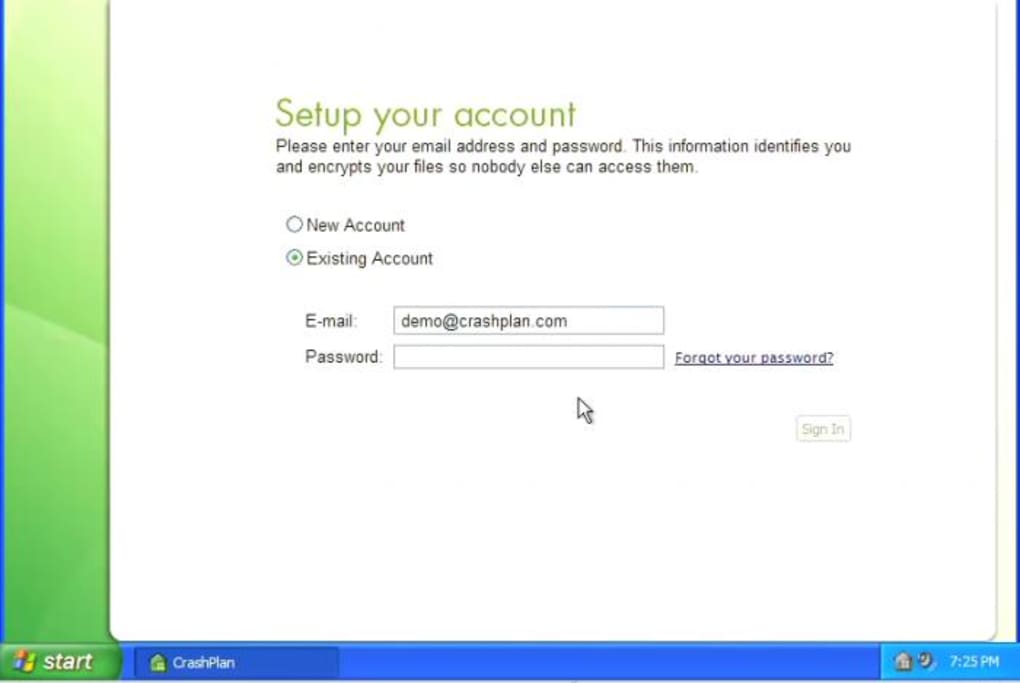
Getting CrashPlan up and running is a straightforward process that can be completed in under ten minutes. After downloading the installer from the official website, launch the .exe (Windows) or .dmg (macOS) file. The installation wizard guides you through four essential steps: entering your email address, choosing a username, creating a strong password, and confirming your account via an email link.
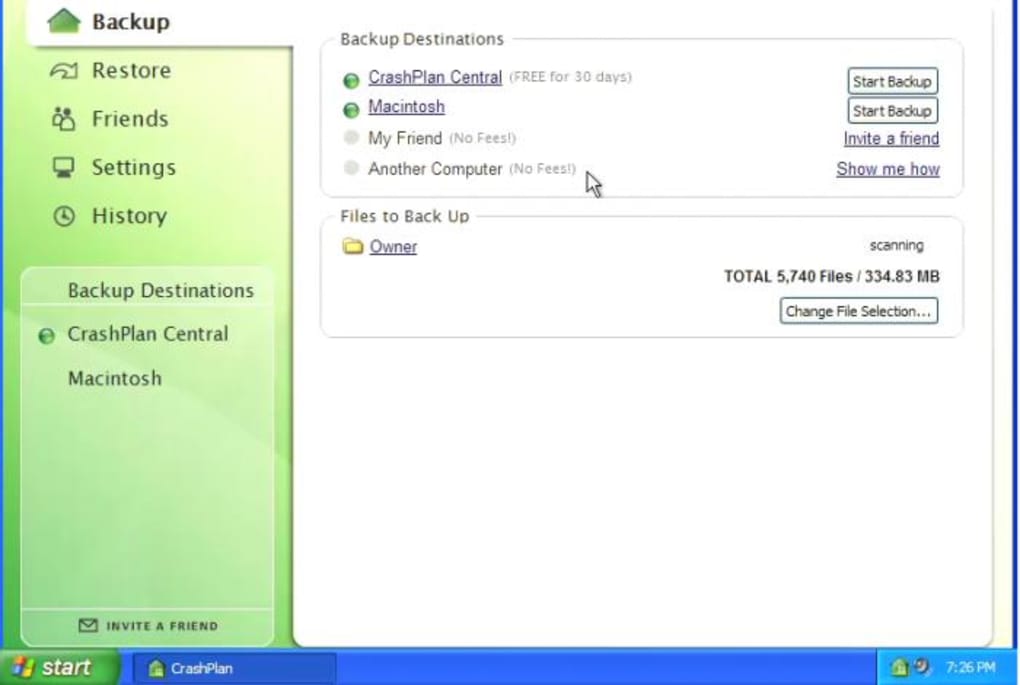
Once your account is verified, you’ll be prompted to select a backup method. For online backups, you’ll need to choose a subscription plan—monthly or annual—and configure the amount of cloud storage you require. Offline backups simply ask you to point the software at a connected external drive or network‑attached storage (NAS) device.
During the setup, CrashPlan automatically detects your operating system and applies a pre‑configured list of file exclusions to prevent unnecessary data from being backed up (e.g., system caches, temporary files, and pagefiles).
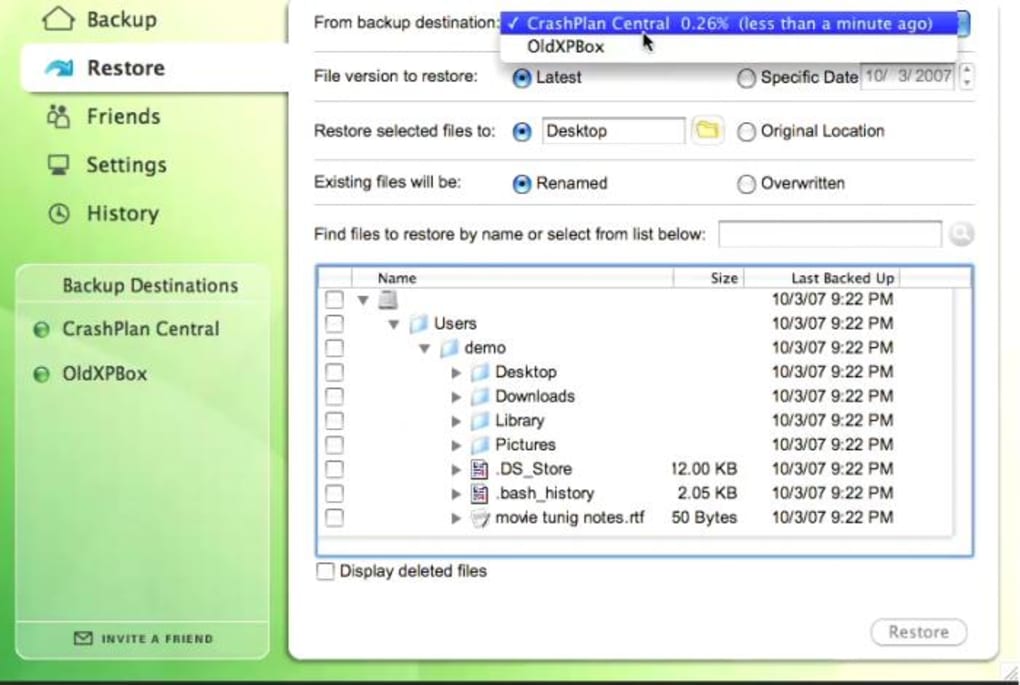
After configuration, the application runs in the background, continuously scanning for file changes. You can monitor progress via the system tray icon or the web dashboard, which provides real‑time statistics on backed‑up files, storage usage, and any errors encountered. CrashPlan’s “Restore” feature lets you retrieve individual files, entire folders, or a full system snapshot with just a few clicks. The restore process respects the original folder hierarchy, ensuring that recovered data lands exactly where you expect it.
Supported operating systems include:
- Windows 10, 11 (64‑bit)
- macOS Catalina (10.15) and later
- Linux distributions with a compatible kernel (Debian, Ubuntu, Fedora)
- iOS 13+ and Android 8+ for mobile device backups
Because CrashPlan is designed to be low‑impact, it consumes less than 5 % of CPU during active backups and typically uses under 100 MB of RAM. This efficiency makes it suitable for older hardware and for users who run resource‑intensive applications such as video editors or game engines. In the rare event of a backup interruption—say, a lost network connection or a full external drive—CrashPlan pauses automatically and resumes once the issue is resolved, preserving the integrity of the backup set.
Frequently Asked Questions & Conclusion
Is CrashPlan free for offline backups?
Yes. CrashPlan offers a completely free tier for offline backups, allowing you to back up to any attached external drive or network storage without a subscription.
How much cloud storage do I get with the paid plan?
The paid plans start at 1 TB of encrypted cloud storage and can be scaled up to 5 TB or more, depending on your needs. Prices are listed on the CrashPlan pricing page.
Can I back up multiple operating systems from the same account?
Absolutely. CrashPlan supports Windows, macOS, Linux, iOS, and Android, all of which can be managed from a single dashboard.
What happens if my external drive runs out of space during a backup?
CrashPlan will pause the backup and display a clear warning indicating that the destination is full. You can then either free up space, add another drive, or switch to the cloud tier.
Is my data encrypted when stored in the cloud?
Yes. CrashPlan uses AES‑256 encryption for all cloud backups, and the encryption keys are derived from your password, ensuring that only you can decrypt the data.
In summary, CrashPlan stands out as a versatile, lightweight, and secure backup solution that adapts to both personal and small‑business environments. Its dual approach—free offline backups paired with an optional, encrypted cloud tier—gives users the freedom to choose the level of protection that matches their budget and risk tolerance. The straightforward installation process, minimal system impact, and comprehensive cross‑platform support make it an excellent candidate for anyone who wants “set‑and‑forget” reliability without sacrificing control. If you’re ready to protect your files from hard‑drive failures, ransomware, or accidental deletions, download CrashPlan today and enjoy peace of mind knowing your data is always safe.







